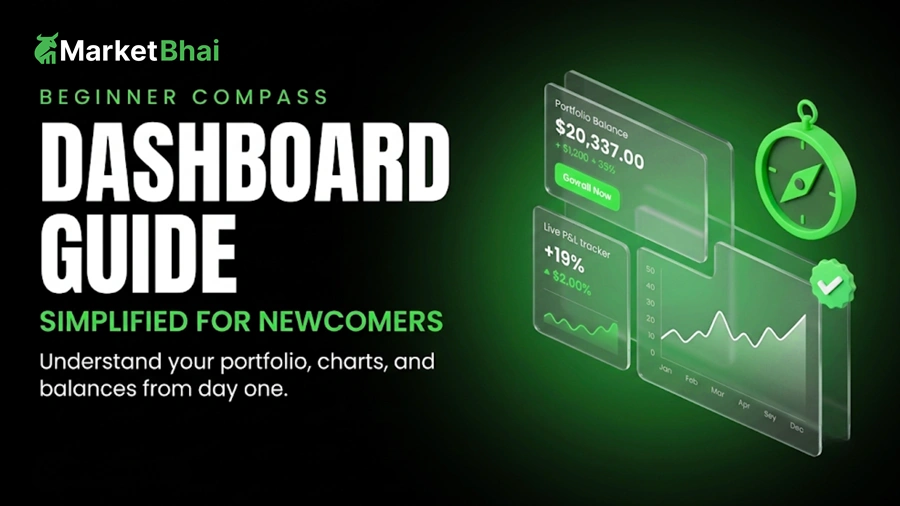

Navigating a new trading interface can feel overwhelming at first, but getting familiar with the TradeX Dashboard can make it much easier to follow market movements and manage your trades. In this TradeX Dashboard Guide, we’ll walk through the tradex key features and tools available in the TradeX workspace, powered by MarketBhai. The platform is designed with a simple, intuitive layout that helps both beginners and active traders navigate charts, monitor positions, and place orders more efficiently.
This step-by-step guide walks you through every component of the TradeX Dashboard, helping you customize your layout, set up charts, and manage your portfolio with absolute confidence.
1. Getting Started: Overview of the TradeX Dashboard
The TradeX interface brings all essential trading utilities into a single, cohesive view. Instead of switching between multiple tabs, you get instant visibility into live market feeds, interactive charts, and real-time order status.
- Header Navigation Bar: Access main portfolio summaries, instant account balances, wallet management, and system settings.
- Watchlist Panel: Monitor your favorite indices, equities, commodities, and currency pairs.
- Central Charting Workspace: Visualize market trends with rich technical indicators, drawing tools, and dynamic timeframes.
- Order Execution Deck: Place buy or sell positions instantly using one-click order panels.
- Portfolio & Open Positions Tracker: Monitor real-time profit and loss (P&L), pending limit orders, and active positions.
2. Personalizing Your Watchlist
A clean watchlist keeps you focused on high-probability opportunities without clutter.
- Adding Instruments: Search for your target asset across stocks, foreign exchange, or commodities, and tap the star icon to append it to your list.
- Creating Multiple Custom Lists: Group your market assets by sector or volatility level (e.g., “Daily Focus,” “Major FX Pairs,” or “Commodities”).
- Sorting & Alerts: Reorder instruments based on daily percentage change, trade volume, or relative strength. Set price alerts directly from the watchlist to capture key breakout levels.
3. Mastering the Interactive Charting Panel
Charts serve as the central visual tool for technical analysis. TradeX integrates dynamic charting features that let you analyze market structure effortlessly.
- Timeframe Flexibility: Switch between tick-by-tick, 1-minute, 15-minute, 1-hour, or daily candlestick views based on your style.
- Technical Indicators: Apply Moving Averages, Relative Strength Index (RSI), Bollinger Bands, and MACD overlays in a few clicks.
- Drawing Tools: Utilize Trendlines, Support & Resistance zones, and Fibonacci Retracements to map out market key levels.
4. How to Execute Orders on TradeX
Placing trades on TradeX is straightforward and designed to minimize slip-ups.
Key Order Types Explained
- Market Orders: Executes instantly at the best available current price.
- Limit Orders: Triggers a trade only when price reaches a specified level.
- Stop-Loss & Take-Profit: Protect your positions by pre-defining automated target exits and safety boundaries.
5. Managing Your Portfolio and Open Positions
After launching a trade, track performance using the real-time order terminal situated at the bottom of the dashboard.
- Open Trades: View active positions along with unrealized P&L and margin allocations.
- Pending Orders: Modify or cancel unfulfilled limit orders before they trigger.
- Trade History: Review past closed trades to evaluate your performance and refine your entry discipline.
For further insights on managing risk and portfolio health, check out our guide on Smart Portfolio Management Strategies.
6. Secure Account Features & Support
Safety and uptime are paramount when managing capital. The TradeX workspace on Market Bhai is backed by standard 256-bit data encryption, robust two-factor authentication, and a 24/7 dedicated support desk to assist with any account queries.
Frequently Asked Questions (FAQ)
Q1: Can I customize the layout of the TradeX Dashboard?
Yes, the TradeX Dashboard allows you to resize windows, toggle light/dark modes, and detach charting modules to build a personalized layout that suits your trading rhythm.
Q2: How fast are order executions on the platform?
TradeX features zero-latency architecture, ensuring your market orders enter the engine instantly without execution delays.
Q3: Is the TradeX Dashboard suitable for absolute beginners?
Absolutely. The clean arrangement, simplified order panels, and seamless integration on Market Bhai make it straightforward for beginners to learn market mechanics without feeling overwhelmed.
Final Thoughts
The TradeX Dashboard combines powerful charting, fast execution, and a user-friendly layout into one seamless workspace. By mastering these basic controls, you gain full command over your daily trading routine. Ready to explore a faster, smoother trading experience? Get started today on Market Bhai and take full control of your investment journey with total confidence!