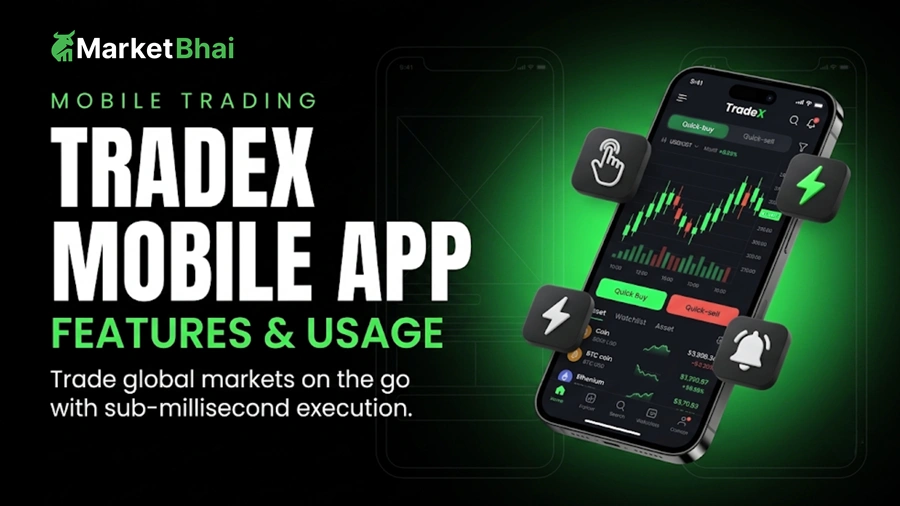

Mobile trading has revolutionized the way individual investors interact with global financial markets. Gone are the days when trading required sitting in front of complex multi-monitor desktop stations. Modern traders demand flexibility, speed, and real-time responsiveness directly from their smartphones. The TradeX mobile app delivers exactly that, providing a robust trading terminal right in the palm of your hand.
Whether you are looking to trade equities, forex, commodities, or digital assets, understanding the complete functionality of this application will dramatically elevate your trading efficiency. In this comprehensive guide, we explore the standout core features of the app, explain how to navigate the platform seamlessly, and provide essential tips to maximize your investment workflow.
Why Mobile Trading with TradeX Matters
Financial markets move at an incredible velocity. Macroeconomic announcements, geopolitical developments, and corporate earnings releases occur around the clock. Having continuous access to your portfolio ensures you never miss a market opportunity or fall victim to sudden downside volatility.
The mobile platform from TradeX bridges the gap between institutional-grade tools and everyday accessibility. Engineered with low-latency architecture, the software ensures fast order routing, high-density charting tools, and high-level encryption standards to keep your transactions secure wherever your day takes you.
Key TradeX App Features Every Trader Should Know
To make the most of your mobile trading journey, it helps to understand the specific capabilities built into the user interface. Here is a detailed breakdown of the premier features available in the platform.
1. Real-Time Market Data and Interactive Technical Charts
Analyzing technical patterns on a mobile device used to be frustrating due to limited screen real estate. TradeX solves this challenge with fully responsive, interactive HTML5 charting engine technology. Key charting capabilities include:
- Multiple Chart Formats: Toggle effortlessly between Candlestick, Line, Heikin-Ashi, and Bar charts.
- Over 50 Technical Indicators: Apply Moving Averages, RSI, MACD, Bollinger Bands, and Fibonacci Retracements with a single tap.
- Custom Timeframes: Switch between 1-minute scalping views and monthly macro perspectives seamlessly.
- Drawing Tools: Sketch trend lines, support and resistance zones, and channel patterns directly on your touchscreen.
2. Advanced Order Types for Precise Risk Management
Executing trades effectively requires more than simple market orders. The application provides access to sophisticated order execution types to help protect your capital:
| Order Type | Primary Function | Best Used For |
|---|---|---|
| Market Order | Executes immediately at the current available market price. | Fast entry or exit when speed is the top priority. |
| Limit Order | Executes only at a specified price or better. | Controlling entry prices and avoiding unexpected slippage. |
| Stop-Loss Order | Automatically closes a position when the market moves against you. | Capping potential downside loss on open trades. |
| Trailing Stop Order | Adjusts the stop price dynamically as the market price moves favorably. | Locking in profits during strong market trends. |
| OCO (One-Cancels-the-Other) | Links a limit order and a stop order simultaneously. | Automating profit target and risk limit placement at entry. |
3. Customizable Watchlists and Smart Alerts
Never miss a key breakout or price drop again. With the customizable watchlist tool, you can categorize your favorite financial instruments into custom folders such as Tech Equities, Major Forex, or Crypto Assets. Additionally, you can configure instant push notifications triggered by price thresholds, percentage changes, or volume spikes.
4. Comprehensive Portfolio Tracking and Analytics
Managing risk requires clear insights into overall asset allocation. The integrated portfolio dashboard provides a visual breakdown of your holdings, real-time unrealized profit and loss metrics, historical trade logs, and performance analytics to evaluate win-rate consistency over time.
5. Seamless One-Tap Trading Mode
For high-frequency traders and day traders who need rapid execution during fast market conditions, the optional One-Tap Trading mode eliminates confirmation pop-up windows. Preset your position sizing beforehand to enter or exit positions in milliseconds with total precision.
How to Use TradeX App: A Step-by-Step User Tutorial
Now that you are familiar with the essential TradeX app features, let us walk through a practical step-by-step TradeX mobile app tutorial to help you master day-to-day navigation.
Step 1: Download and Log In to the Application
Search for TradeX on the official Apple App Store or Google Play Store. Download the app, launch it, and log in using your registered credentials. Be sure to enable biometric authentication, such as Face ID or fingerprint sign-in, to ensure secure and quick access.
Step 2: Set Up Your Personalized Dashboard and Watchlist
Upon opening the dashboard, tap the + icon in the top right corner to create your first watchlist. Search for assets by ticker symbol or full company name, then tap the star icon next to each asset to pin it to your main screen.
Step 3: Analyze an Asset Using Technical Tools
Tap on any financial instrument from your watchlist to open its detailed asset view page. Rotate your screen horizontally to enter full-screen charting mode. Select the FX icon at the top of the chart to attach technical indicators such as the Relative Strength Index or Exponential Moving Averages.
Step 4: Execute Your First Trade
When you are ready to trade, follow these straightforward execution steps:
- Tap either the Buy or Sell button at the bottom of the asset view screen.
- Select your desired order type (Market, Limit, or Stop).
- Enter the order quantity or specify your position size in local currency.
- Set your Stop-Loss and Take-Profit parameters to enforce disciplined risk management.
- Review the order summary details and swipe or tap to confirm execution.
Step 5: Monitor and Manage Active Positions
Navigate to the Positions tab on the bottom menu bar to monitor open trades in real time. Here, you can adjust your stop-loss levels, modify limit price targets, or manually close a portion or the entirety of your position whenever necessary.
Pro Tips for Trading on TradeX Application Safely
Success in financial markets depends heavily on discipline, security, and continuous learning. Keep these actionable recommendations in mind when trading on the mobile platform:
- Practice in Demo Mode First: If you are new to the platform, switch to the virtual practice account to familiarize yourself with order placement mechanics without committing real capital.
- Always Secure Your Network: Avoid placing orders while connected to unencrypted public Wi-Fi networks. Always use cellular data or a private network protected by a virtual private network (VPN).
- Keep Push Notifications Active: Enable push notifications for margin calls, executed stop orders, and critical security alerts to stay informed at all times.
- Regularly Clear App Cache: To ensure peak execution speed and prevent display lag during volatile market hours, clear the app cache periodically through the app settings menu.
Frequently Asked Questions (FAQs)
1. Is the TradeX app free to download and use?
Yes, the TradeX app is completely free to download on both iOS and Android platforms. There are no monthly subscription fees for utilizing standard charting, watchlist, or portfolio tracking capabilities. Standard trading fees, spreads, or transaction commissions apply only when executing live trades.
2. Can I use the TradeX app on multiple devices simultaneously?
Yes, your account synchronizes seamlessly across desktop web terminals, tablets, and smartphones. However, for enhanced security, you will receive real-time login notification alerts whenever a new device accesses your account credentials.
3. How do I switch between the demo account and live trading?
You can toggle between live and practice modes with ease. Tap on your profile icon in the top left corner of the home screen, select Account Type, and switch to the Demo Account. You can switch back to your real account using the same menu at any time.
4. What should I do if the TradeX app freezes during an active trade?
If you encounter app performance issues, force close the application and reopen it immediately. Check your internet connection stability. If the issue persists, log into the TradeX web terminal on any mobile or desktop web browser to manage your open positions without delay.
5. How do deposits and withdrawals work within the mobile app?
Funding your account directly inside the app is straightforward. Navigate to the Wallet or Banking section in the main menu, choose your preferred payment method, enter the desired deposit or withdrawal amount, and follow the on-screen prompts to confirm the transaction safely.
Conclusion
Mastering the TradeX app features empowers you to make smarter, faster, and more informed trading decisions anywhere in the world. By following this TradeX mobile trading guide, setting up proper security protocols, and taking advantage of advanced order types, you can build a flexible investment strategy tailored to your financial goals. Download the application today, explore its built-in analytical tools, and take your trading journey to the next level!